Automatically Add Greetings with VBA When Replying to Emails
The following VBA code helps you auto-insert a personalized greeting (e.g., “Dear John, Good morning!”) into the reply message body based on the current time of day.
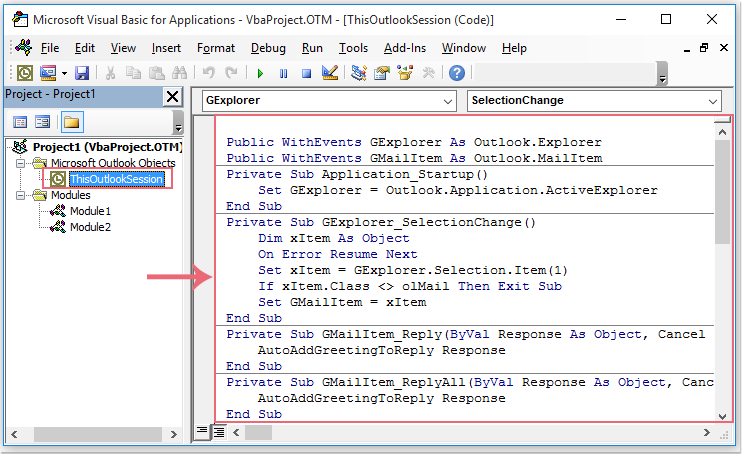
Step 1: Open the VBA Editor in Outlook
- Press Alt + F11 to open the Microsoft Visual Basic for Applications window.
- In the left pane under
"Project1 (VbaProject.OTM)", expand"Microsoft Outlook Objects"and double-click"ThisOutlookSession".
Step 2: Insert the VBA Code
Copy and paste the following VBA code into the editor:
Public WithEvents GExplorer As Outlook.Explorer
Public WithEvents GMailItem As Outlook.MailItem

Private Sub Application_Startup()
    Set GExplorer = Outlook.Application.ActiveExplorer
End Sub

Private Sub GExplorer_SelectionChange()
    Dim xItem As Object
    On Error Resume Next
    Set xItem = GExplorer.Selection.Item(1)
    If xItem.Class <> olMail Then Exit Sub
    Set GMailItem = xItem
End Sub

Private Sub GMailItem_Reply(ByVal Response As Object, Cancel As Boolean)
    AutoAddGreetingToReply Response
End Sub

Private Sub GMailItem_ReplyAll(ByVal Response As Object, Cancel As Boolean)
    AutoAddGreetingToReply Response
End Sub

Sub AutoAddGreetingToReply(Item As Object)
    Dim xGreetStr As String
    Dim xReplyMail As MailItem
    Dim xSenderName As String
    Dim xRecipient As Recipient
    On Error Resume Next
    If Item.Class <> olMail Then Exit Sub
    Set xReplyMail = Item
    For Each xRecipient In xReplyMail.Recipients
        If xSenderName = "" Then
            xSenderName = xRecipient.Name
        Else
            xSenderName = xSenderName & "," & xRecipient.Name
        End If
    Next xRecipient
    Select Case Time
           Case 0.3 To 0.5
                xGreetStr = " Good morning!"
           Case 0.5 To 0.75
                xGreetStr = " Good afternoon!"
           Case Else
                xGreetStr = " Good evening!"
    End Select
    With xReplyMail
        .Display
        .HTMLBody = "Dear " & xSenderName & "," & xGreetStr & "" & .HTMLBody
    End With
End Sub
Step 3: Save VBA Code and Restart Outlook
- Press
Ctrl + Sto save the project. - Close the VBA editor and restart Outlook for the code to take effect.
Result:
Whenever you reply to an email, Outlook will automatically insert a greeting at the top of the message body.

Limitations:
- ❌ Manual Setup Required: You must access and edit the VBA editor.
- ❌ Macros Must Be Enabled: Some Outlook environments may block macros.
- ❌ Basic Formatting: The greeting style is limited unless you modify the code further.